How to Process PDFs Offline on Any Device
Learn how to work with PDF documents completely offline using browser-based tools and mobile apps that keep your data private.
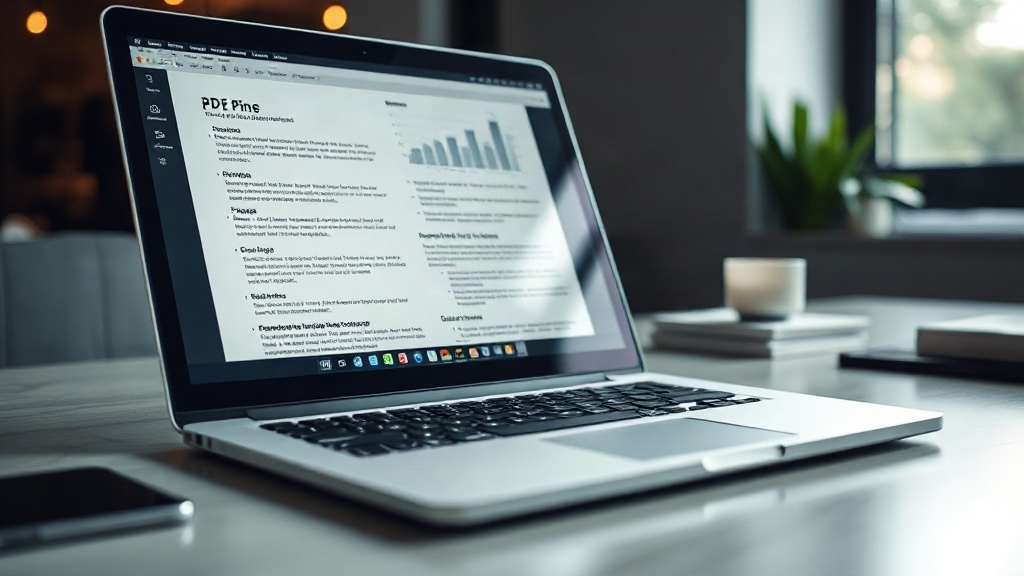
In an era of constant connectivity, we often assume document processing requires sending files to remote servers. However, many essential PDF tasks can be performed entirely offline on your computer, tablet, or smartphone. This approach keeps sensitive documents private, ensures work continues without internet interruptions, and often provides faster processing times.
The simplest method for offline PDF work is using your web browser's built-in capabilities. Modern browsers like Chrome, Edge, and Firefox can function as capable PDF viewers and basic editors without any internet connection. Once a PDF is downloaded to your device, you can open it directly in your browser to view, scroll, search text (in searchable PDFs), and print. For basic editing, you can use the browser's print function to "Save as PDF," which effectively lets you combine multiple documents—like web pages and images—into a single PDF file while offline. This is perfect for creating quick reference documents from locally saved materials.
For more advanced offline processing, dedicated desktop software remains the most powerful solution. Applications like Adobe Acrobat Reader (free version), Foxit Reader, and Sumatra PDF provide robust offline functionality. You can annotate documents with highlights, comments, and sticky notes; fill out interactive PDF forms; and digitally sign documents—all without ever connecting to the internet. Most professional PDF editors also allow you to merge, split, rotate, and compress PDFs using local processing power. The key is ensuring the software is fully installed and any necessary resources (like fonts) are available locally.
Mobile devices offer surprising offline PDF capabilities through apps designed for local processing. Look for apps that specifically advertise "offline mode" or "no internet required" in their descriptions. On both iOS and Android, numerous file manager apps and dedicated PDF readers allow you to organize, annotate, and share PDFs from your device's local storage. For security-conscious workflows, prioritize apps that process everything on-device. You can typically annotate with a stylus or finger, bookmark pages, and even perform basic text extraction—all while on airplane mode.
To build a reliable offline PDF workflow, start by curating a toolkit. Install one robust desktop reader/editor, one capable mobile app, and familiarize yourself with your browser's PDF features. Then, organize your documents: keep frequently accessed PDFs in a designated folder on your device's internal storage, not just cloud-synced locations. Before traveling or entering areas with poor connectivity, test your setup by disabling Wi-Fi and mobile data, then try to open, annotate, and save a test PDF. This confirms everything works as expected.
Offline PDF management shines in specific scenarios. Lawyers reviewing confidential case files, researchers working with proprietary data in the field, students studying in areas with no Wi-Fi, and professionals preparing for flights or remote locations all benefit from local processing. The workflow also provides a crucial backup; if your cloud service experiences downtime or your connection fails, your document work doesn't need to stop.
By leveraging local software and device capabilities, you maintain complete control over your documents. Your files never travel over the network unless you choose to send them, significantly reducing security risks. This method proves that sophisticated document management doesn't depend on a constant internet handshake—it can be smart, efficient, and entirely private, right from your own device.
Read Also

How to Create a PDF Document Review Workflow
Implementing a structured review workflow for PDF documents prevents bottlenecks, ensures version control, and streamlines team collaboration. Learn how to set one up.
How to Build Multi-PDF Document Pipelines
Complex projects often require managing multiple PDF files in a sequence. Learn to create efficient, automated pipelines for merging, converting, and processing PDFs.
How to Streamline Collaborative PDF Editing Like a Pro
Learn proven methods and essential tools to manage multi-user PDF editing without the chaos, saving time and ensuring version control.